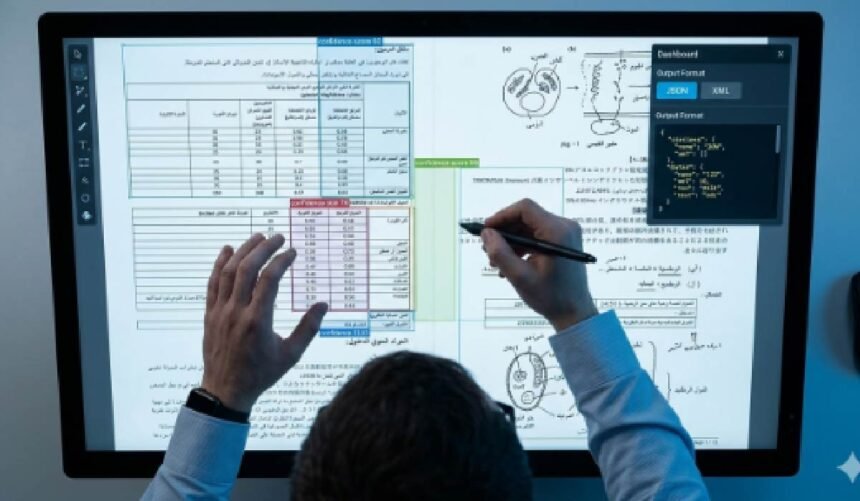
Researchers often face a mountain of valuable information locked away in images. Scanned historical documents, photographs of manuscripts, figures in academic papers, and notes from the field contain critical data. Manually transcribing this text is not only tedious and time-consuming but also prone to human error. Fortunately, artificial intelligence offers a powerful solution to this problem, streamlining your workflow and unlocking data with incredible speed.
Modern AI tools make converting an image to text a straightforward process. This technology, often called Optical Character Recognition (OCR), uses sophisticated algorithms to identify and convert printed or handwritten characters from an image into editable, searchable text. For any researcher, student, or academic, mastering this skill can dramatically boost productivity and allow you to focus more on analysis and less on manual data entry.
A Step-by-Step Guide to Extracting Text
Turning a picture into usable text is a simple process once you understand the basic steps. By following this guide, you can ensure you get the most accurate results possible from your source materials. This workflow applies to most AI-powered OCR tools and helps you build a reliable system for your research projects.
Step 1: Select and Prepare Your Image File
The quality of your output depends almost entirely on the quality of your input. Before you even think about extraction, you need to prepare your image file. Start by selecting the highest resolution version of the image you have. Clear, sharp images with good contrast between the text and the background will always yield better results.
Ensure the text is legible and not heavily distorted by shadows, glare, or the curve of a book’s page. If necessary, use a simple photo editor to crop out irrelevant parts of the image, straighten the alignment, and increase the contrast. Supported file types are usually standard formats like JPG, PNG, and sometimes PDF. Getting clean text from images starts with a clean source file.
Step 2: Choose and Access an AI Tool
There are many AI-powered OCR tools available online. Most operate on a similar principle: you upload an image, and the service processes it to extract the text. When selecting a tool, consider factors like its accuracy, the languages it supports, and its privacy policy, especially if you are working with sensitive documents. Many services offer a simple, browser-based interface that requires no software installation.
Step 3: Upload Your Prepared Image
Once you have your image file ready, the next step is to upload it to your chosen platform. This is typically done through a simple “Upload” button or a drag-and-drop area on the website. Navigate to the location of your saved image file, select it, and confirm the upload. The tool will then ingest the file and prepare it for analysis.
Step 4: Initiate the Transcription Process
After your image is uploaded, you will usually need to click a button labeled “Convert,” “Extract,” or “Transcribe” to start the process. The AI gets to work at this stage. It scans the image pixel by pixel, identifying patterns that correspond to letters, numbers, and symbols. Advanced systems can also recognize document structure, such as paragraphs, lists, and columns. This entire process usually only takes a few seconds to a minute, depending on the image’s complexity and size.
Step 5: Review and Edit the Extracted Text
No AI is perfect. The transcribed text will appear in an editable window once the process is complete. Your next crucial step is to carefully review the output and compare it against the original image. Look for common OCR errors, such as confusing similar characters (like ‘l’ and ‘1’, or ‘O’ and ‘0’), missed punctuation, or words that were incorrectly merged. Make any necessary corrections directly in the text editor to ensure the final output is 100% accurate.
Step 6: Export and Organize Your Text
With your text now corrected and finalized, you can export it for use in your research. Most tools offer several export options, such as copying the text to your clipboard or downloading it as a TXT, DOC, or PDF file. Choose the format that best suits your needs. You can then paste the text into your research notes, a word processor, a database, or citation management software like Zotero or EndNote, making it fully searchable and ready for analysis.
Tips for a Flawless Transcription
Getting a perfect transcription requires more than just uploading a file. By adopting a few best practices, you can significantly improve the accuracy of your results and save yourself valuable editing time down the line.
Tip 1: Always Start with High-Quality Images
This point cannot be overstated. A blurry, low-resolution, or poorly lit photograph will confuse the AI. For the best results, use a flatbed scanner for documents whenever possible. If you are using a smartphone, ensure the camera is held parallel to the document, the lighting is even with no glare, and the text is in sharp focus.
Tip 2: Pre-Process Complex or Damaged Images
If you are working with old documents, manuscripts, or images with complex layouts, some pre-processing can work wonders. Use a basic image editor to increase contrast, which helps the AI distinguish text from the background. If the document is skewed, use a “straighten” or “perspective” tool to align the text horizontally. For documents with columns or embedded images, you might get better results by cropping and transcribing each section separately.
Tip 3: Understand Language and Font Limitations
Most OCR tools are highly effective with standard printed fonts in major languages like English. However, their performance can vary with decorative or script-style fonts, and especially with handwriting. If you are working with non-standard text or different languages, check that your chosen tool supports them. Some specialized AI models are trained specifically for historical documents or certain languages.
Tip 4: Batch Process for Maximum Efficiency
For large-scale research projects involving hundreds or even thousands of images, transcribing them one by one is not practical. Look for tools that offer batch processing capabilities. This feature allows you to upload multiple files at once and let the AI transcribe them all in a single queue. It is a massive time-saver for digitizing archives or extensive collections of documents.
Tip 5: Pay Attention to Formatting
AI is good at recognizing characters, but it can sometimes struggle to perfectly replicate the original document’s formatting. Tables, columns, bullet points, and complex indentation may not transfer correctly. Be prepared to manually reformat the extracted text in your word processor to match the original layout if it is important for your analysis.
Common Mistakes to Avoid
While AI transcription is a powerful tool, a few common pitfalls can lead to frustration and inaccurate results. Being aware of these mistakes will help you develop a more effective and reliable workflow.
Mistake 1: Blindly Trusting the AI Output
The most frequent mistake is assuming the extracted text is 100% correct without verification. Always treat the AI’s output as a first draft. A quick proofread against the original image is essential to catch subtle errors that could impact your research data. Small mistakes in numbers, dates, or names can have significant consequences.
Mistake 2: Using Low-Resolution Source Files
Feeding the AI a low-quality image is the surest way to get a poor-quality transcription. Pixelated or blurry text is unreadable to an algorithm, just as it is to the human eye. Avoid using compressed images shared through messaging apps or low-resolution thumbnails. Always try to find the highest-quality version of the image available.
Mistake 3: Ignoring the Image’s Context and Condition
An AI does not understand context. It cannot read faded text on a creased, water-stained document as well as a human can. Physical damage to a source document, archaic spellings, or unusual jargon can easily confuse the OCR engine. When dealing with such materials, expect to spend more time on manual correction.
Mistake 4: Disregarding Data Privacy and Security
Be cautious when using free online OCR tools, especially if your research involves sensitive or confidential information. Before uploading any document, review the platform’s privacy policy. Ensure you understand how your data is handled, whether it is stored on their servers, and if it is used for any other purpose. For sensitive materials, it may be better to use offline OCR software.
Conclusion
AI-powered image-to-text transcription is an indispensable tool for the modern researcher. It breaks down the barriers between physical and digital information, transforming static images into dynamic, searchable, and analyzable data. By following a structured workflow, preparing your images carefully, and remaining mindful of the technology’s limitations, you can save countless hours of manual labor. This allows you to dedicate more of your valuable time to what truly matters: interpreting information, uncovering insights, and advancing your research.