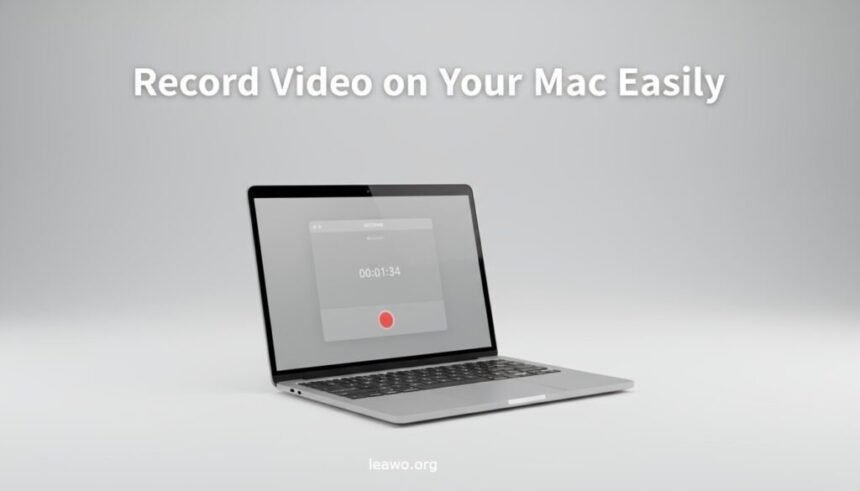
Recording videos on your Mac can be incredibly convenient — whether you’re creating tutorials, recording meetings, streaming gameplay, or capturing a presentation. Fortunately, macOS provides several ways to record video on Mac easily, even for beginners. With built-in tools like QuickTime Player and advanced software such as CleverGet Recorder, you can capture high-quality footage effortlessly.
In this guide, we’ll walk you through everything you need to know about how to record a video on a Mac, from preparation and setup to troubleshooting common issues.
Part 1: Essential Tips for Smooth Video Recording on Mac
Before you start your first recording session, it’s important to prepare your system and configure the right settings. Following these steps will help you avoid lag, audio sync issues, or recording errors.
1. Optimize Your Mac
Smooth recording starts with a well-optimized system. Recording — especially HD or 4K video — can use a lot of processing power and memory. To ensure the best performance:
- Close unnecessary apps: Quit background programs like browsers, messaging apps, or heavy software that may consume CPU and RAM.
- Free up storage space: Video files can be large. Ensure you have several gigabytes of available disk space before recording.
- Update macOS and apps: Always use the latest macOS version and the latest updates for your recording tools to prevent bugs or crashes.
- Plug in your MacBook: Recording drains the battery quickly, so connect your charger during long sessions.
With these optimizations, you’ll be ready to record video on Mac smoothly and without interruptions.
2. Choose the Right Recorder
Choosing the right software is key to high-quality recordings. There are two main options — Apple’s built-in QuickTime Player for basic use, and CleverGet Recorder for advanced screen and audio capture.
- QuickTime Player: Perfect for beginners learning how to record video on Mac, this built-in tool lets you capture your screen, webcam, and audio. It’s simple and reliable for general use.
- CleverGet Recorder (Recommended): This powerful recording software allows you to screen record on any device, including your Mac, with superior control over resolution, frame rate, and sound sources. It’s ideal for recording streaming videos, gameplay, or online meetings.
When deciding which tool to use, think about your goals. If you’re making quick tutorials or webcam videos, QuickTime Player is enough. But for professional-quality results or streaming capture, CleverGet Recorder is your best choice.
3. Check Settings Before Recording
Before you start, take a few minutes to verify your settings. This will help you avoid having to re-record later.
- Audio source: Choose whether to record with your Mac’s internal microphone or an external mic for better sound quality.
- Camera: If you plan to record a video on Mac with a webcam, make sure it’s properly connected and selected in the recording tool.
- Resolution and frame rate: Set your preferred video quality — 1080p at 30fps is standard, but higher resolutions are available for professional results.
- Save location: Choose a folder with sufficient space and easy access for saving your recordings.
After these checks, you’re ready to start recording.
Part 2: Step-by-Step Guide to Recording Video on Mac
Now that your Mac is optimized and your settings are ready, let’s look at two main ways to record a video on Mac: using QuickTime Player and CleverGet Recorder.
1. Recording Your Screen and Webcam (Using QuickTime Player)
QuickTime Player is pre-installed on every Mac, making it one of the easiest tools for beginners. You can use it to record your screen, webcam, or both.
To Record Your Screen:
- Open QuickTime Player from your Applications folder.
- Click on File > New Screen Recording.
- A recording toolbar will appear — click the arrow next to the record button to adjust settings (e.g., microphone input).
- Click Record, then choose whether to capture the entire screen or a selected portion.
- To stop recording, click the Stop icon in the menu bar.
- Save your file to your chosen location.
To Record with Your Webcam:
- Open QuickTime Player.
- Select File > New Movie Recording.
- Choose your camera and microphone from the dropdown menu beside the record button.
- Click Record to start and Stop when finished.
- Save your video file to your Mac.
QuickTime is perfect for basic recording needs, but if you want advanced features such as system audio capture, streaming recording, or higher control over quality, try CleverGet Recorder.
2. Screen Recording Streaming Video (Using CleverGet Recorder)
When it comes to recording streaming videos, live sessions, or online classes, CleverGet Recorder is a more professional and flexible solution.
Steps to Record Using CleverGet Recorder:
- Download and install CleverGet Recorder on your Mac from official website.
- Launch the program and adjust recording settings: Choose video resolution, frame rate, and output format.
- Go to the target video through the address bar and play it.
- Click “Record” to start capturing. You can pause or resume at any time.
- When finished, click Stop and save your video.
Why Use CleverGet Recorder?
- High-quality screen and audio recording.
- Ability to capture streaming and encrypted videos.
- Scheduled recording and flexible recording modes.
- User-friendly interface for beginners and professionals alike.
If you want more control over your recordings or need to capture streaming content, CleverGet Recorder is your go-to tool for how to record a video on a Mac effectively.
Part 3: Troubleshooting Common Issues
Even with the best setup, you may occasionally encounter problems while trying to record video on Mac. Below are some common issues and how to fix them.
1. Lagging or Freezing
Causes: Insufficient RAM, too many background apps, or high CPU usage.
Fixes:
- Close other running applications before recording.
- Lower your recording resolution or frame rate.
- Restart your Mac to clear temporary memory.
- If lag persists, use CleverGet Recorder, which optimizes CPU use for smoother performance.
2. Audio Not Recording
Causes: Wrong microphone input or disabled app permissions.
Fixes:
- Go to System Settings > Sound > Input and select your correct mic.
- Check permissions: System Settings > Privacy & Security > Microphone — enable access for QuickTime or CleverGet Recorder.
- Make sure “Mute” isn’t active in the recording app.
- For internal sound, CleverGet Recorder supports direct system audio capture without extra setup.
3. Screen or Webcam Not Recording
Causes: macOS security restrictions or missing permissions.
Fixes:
- Go to System Settings > Privacy & Security > Screen Recording and enable access for your app.
- For webcam issues, check Camera permissions.
- Restart your app and try again.
If you’re using QuickTime and the issue persists, CleverGet Recorder provides a more stable experience for both screen and webcam recordings.
Part 4: Conclusion
Learning how to record video on Mac doesn’t have to be complicated. With the right preparation, tools, and settings, anyone can create professional-quality videos in minutes. If you’re just starting, QuickTime Player offers an easy way to record a video on Mac. For advanced features like system audio capture, streaming recording, and flexible output formats, CleverGet Recorder from Leawo is an excellent choice. By optimizing your system, choosing the right tool, and following the troubleshooting tips above, you’ll be able to screen record on any device — creating smooth, high-quality videos effortlessly.
So go ahead, open your recorder, and start capturing your best content today!